
How to use Relief Manager
Five steps to set up once, then three steps every morning. Watch the tutorial or follow the screenshots below.
Relief Manager tutorial
The full video tutorial is coming soon.
-
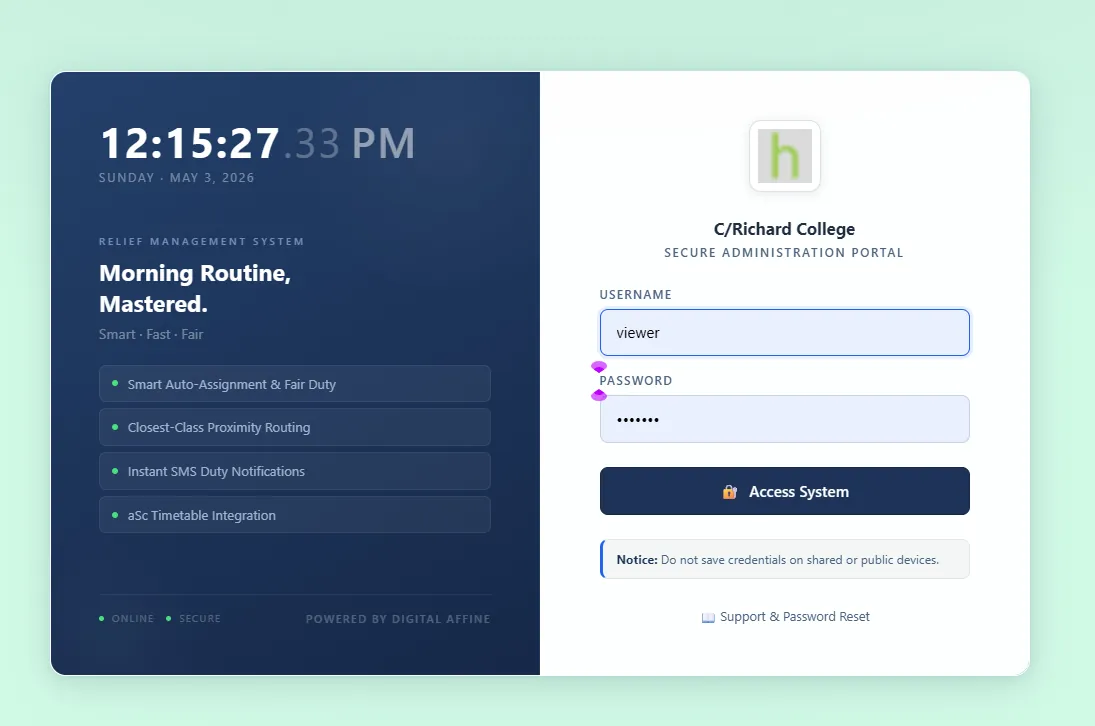
Get your school's Relief Manager address
Contact us on WhatsApp or by email. We create your school's own address, such as yourschool.reliefmanager.edu.lk, and send you an administrator sign-in.
- Sign in from any browser on a computer, tablet or phone.
- Change the administrator password in Options straight away.
Do not save the administrator password on shared office computers.
-
Export your timetable from aSc Timetables
Open your finished timetable in aSc Timetables and use the File menu's Export option to save it as an aSc XML file. Schools using Srimalee or similar local software can export MDB or CSV instead.
- Make sure every teacher and class has a name in aSc before exporting.
- Keep the XML file somewhere safe. You will import it again whenever the timetable changes.
Detailed guide: How to export an aSc Timetables XML file (see the blog).
-
Import the timetable
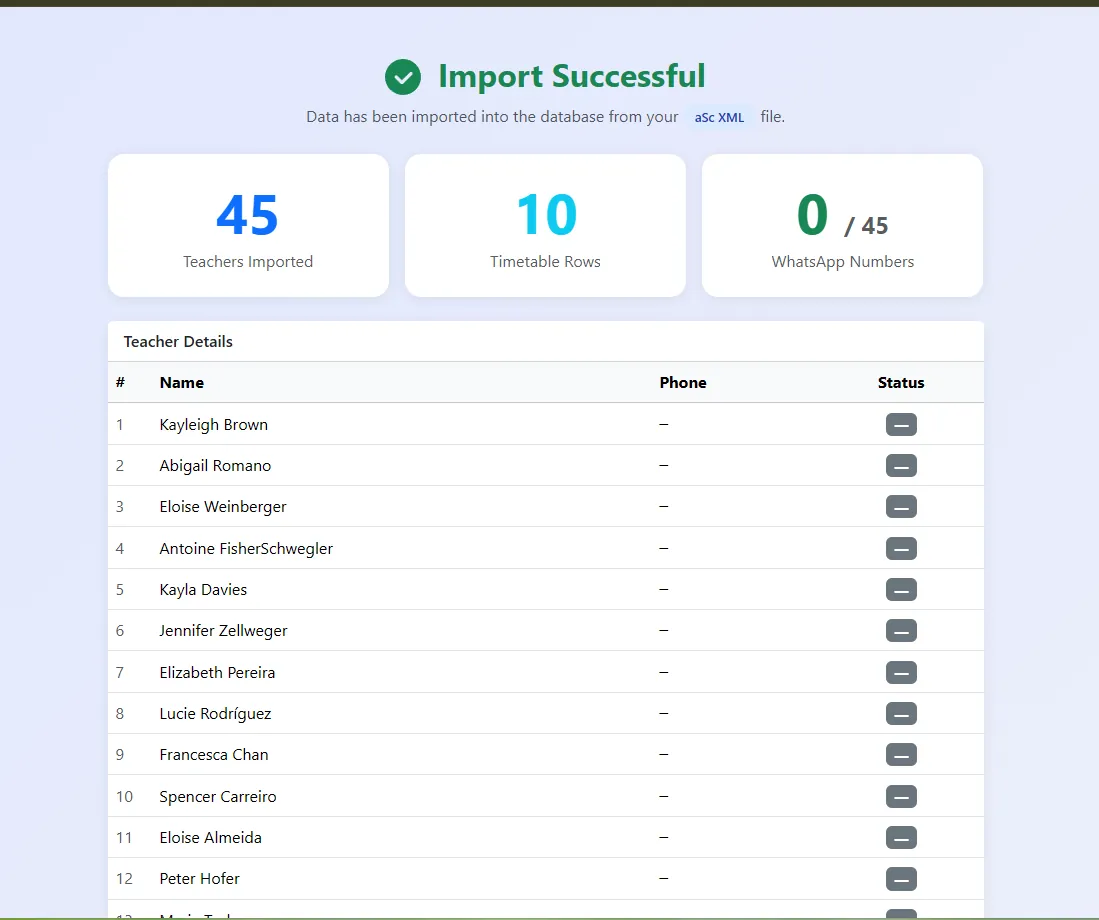
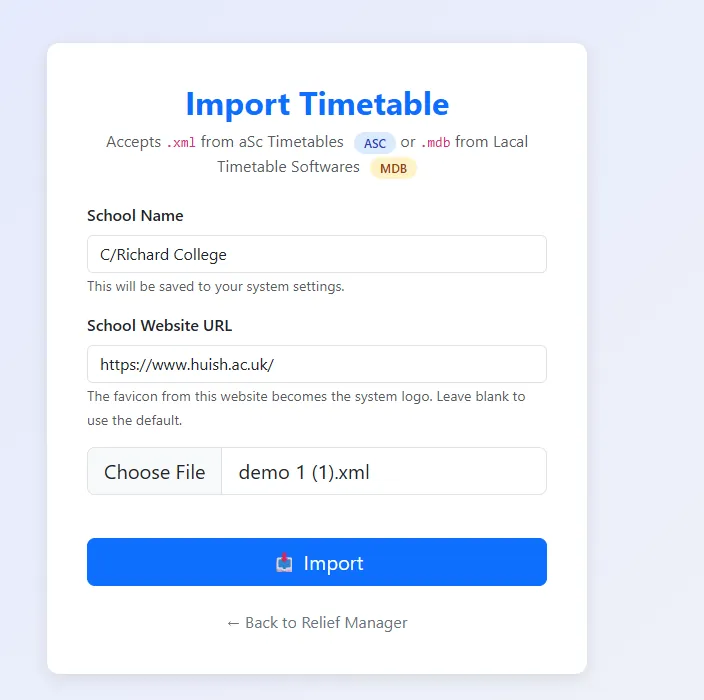
Open Import Timetable, type your school name and website, choose the XML (or MDB) file and press Import. The summary shows how many teachers and timetable rows came in.
- The website's icon becomes your system logo. Leave it blank to use the default.
- Check the WhatsApp numbers count. Teachers without a number will not receive messages.
-
Set your options
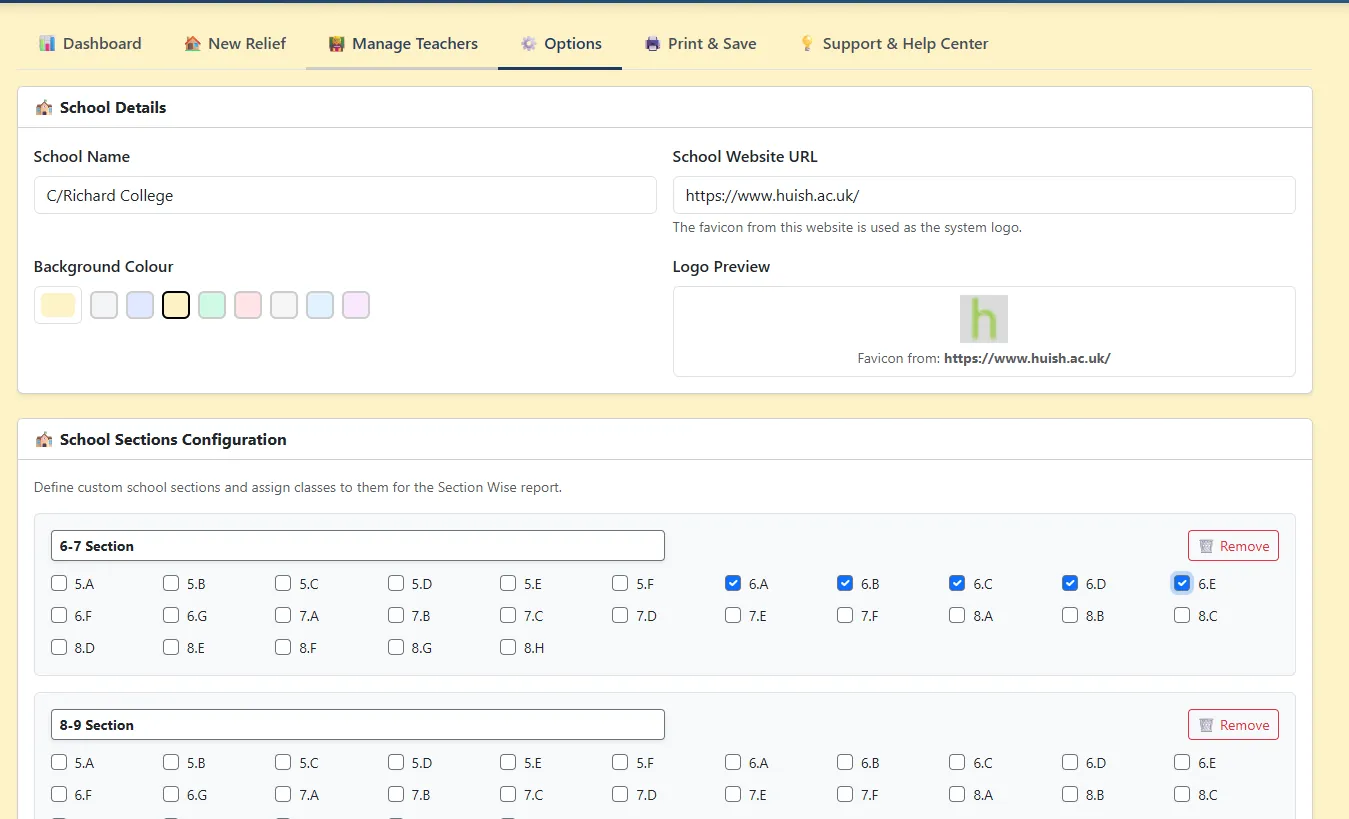
In Options, fill in school details and set up the rules once.
- School sections: group classes (6–7, 8–9, O/L, A/L streams) for section-wise reports.
- Leave periods: tick which periods each leave type covers.
- Exempt classes and active relief periods.
- Criteria weights: start with the Balanced preset.
- WhatsApp and SMS templates.
The Configuration Verification box warns about classes not yet in a section.
-
Set up your teachers
In Manage Teachers, check each teacher's details once.
- Add or correct WhatsApp numbers (these are also used for TeacherSync sign-in).
- Choose subject partners.
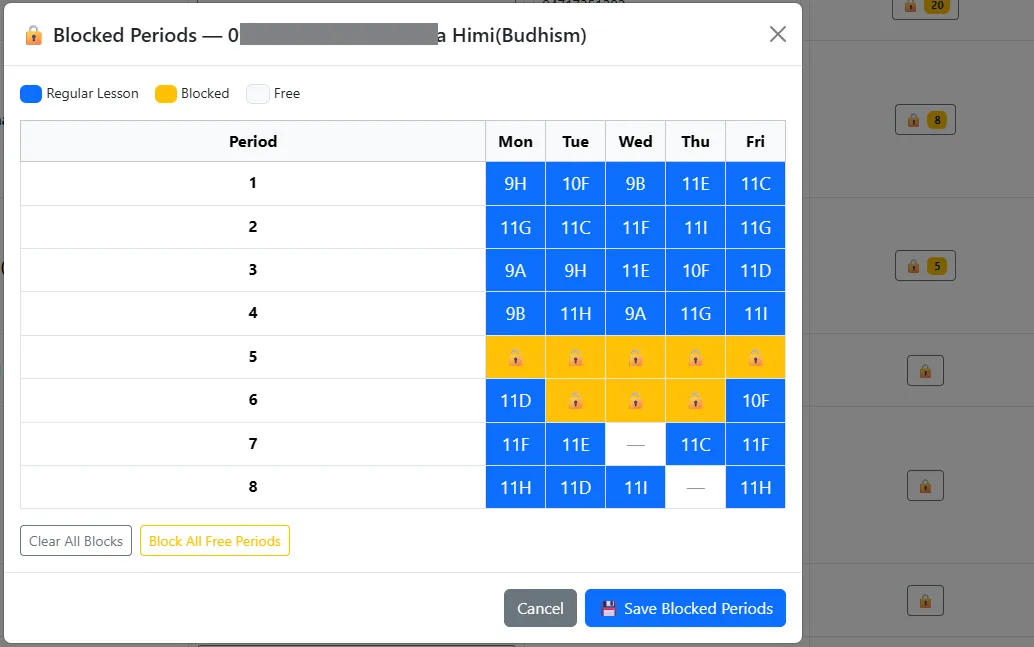
- Block periods for sectional heads and teachers with other duties.
- Switch off teachers who have left. Press Save All.
-
Each morning: mark absent teachers
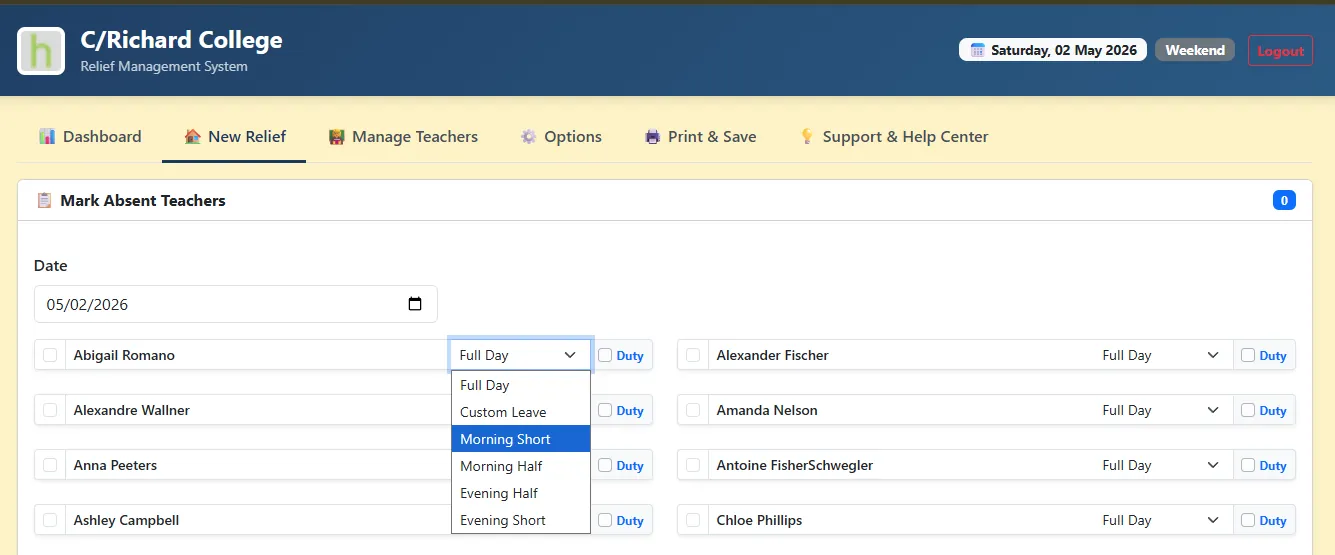
Open New Relief, check the date, tick each absent teacher and choose the leave type. Tick Duty for teachers away on official school business.
- Add a non-teaching activity for sports meets or special days.
- Press Process Relief.
If you change a selection afterwards, press Process Relief again to refresh the table.
-
Auto-assign, review and confirm
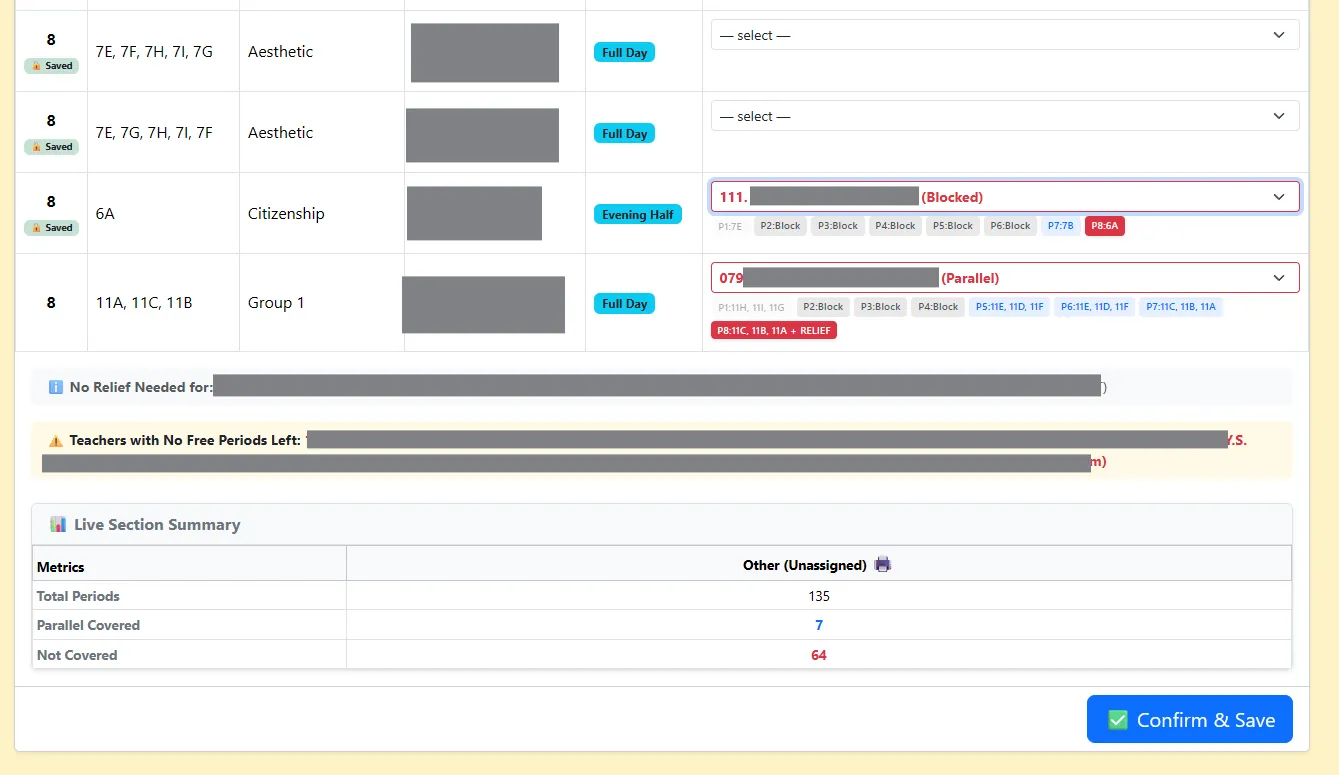
Press Auto Assign. Each period gets the best-scoring free teacher. Open any dropdown to see the ranked list with free periods and points, and change the choice if you need to.
- Use Fair Duty, Skip Assigned and Skip Parallel to control the run.
- The Live Section Summary shows what is still not covered.
- Press Confirm & Save.
-
Notify teachers and print
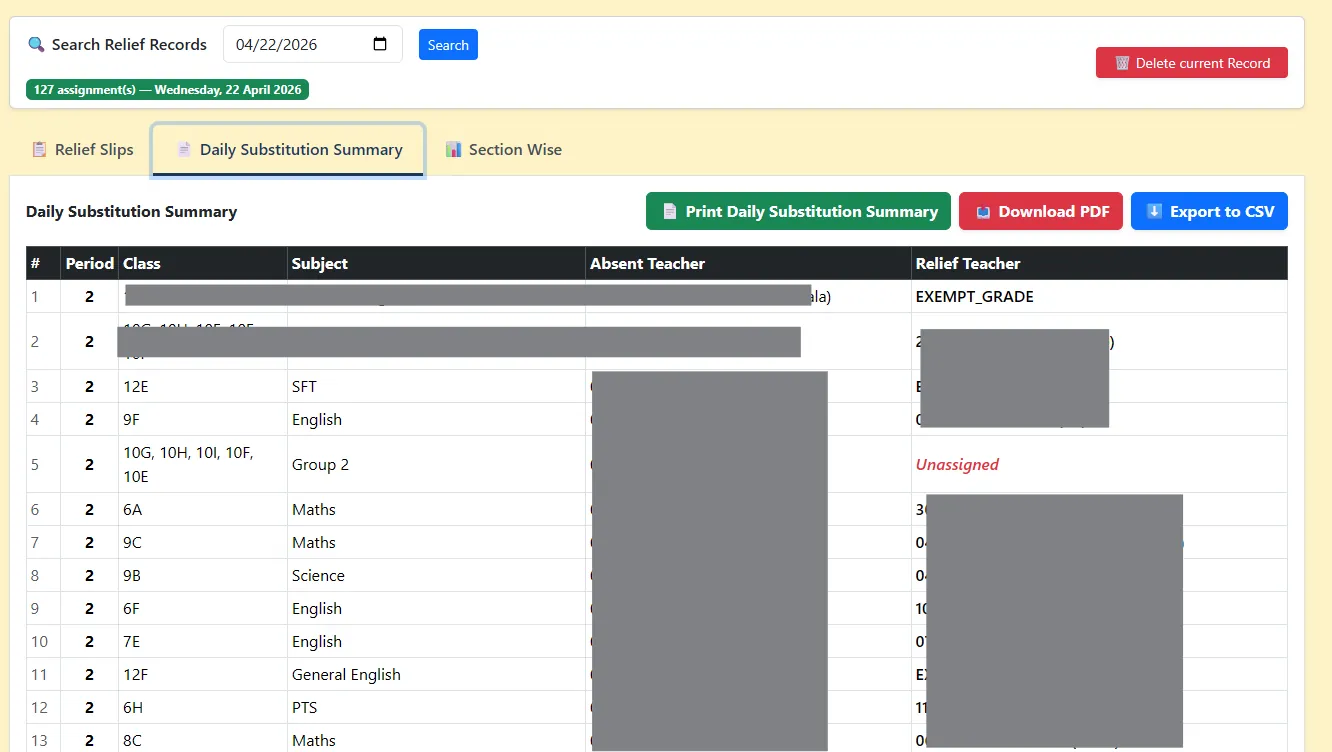
Send WhatsApp or SMS messages, and teachers see their duties in TeacherSync. In Print & Save, print relief slips, the daily substitution summary and section-wise reports.
- Download PDF or export CSV for your records.
- Search any past date to reprint.
Once a week, open the Dashboard to see who is covering the most and adjust your weights if needed.
Stuck on a step?
Send a screenshot on WhatsApp and we will walk you through it.