In short: open your finished timetable in aSc Timetables, choose File, then Export, and save it in the aSc XML format. In Relief Manager, open Import Timetable, choose that file and press Import. Teachers, classes, subjects and every period come in at once.
Why XML?
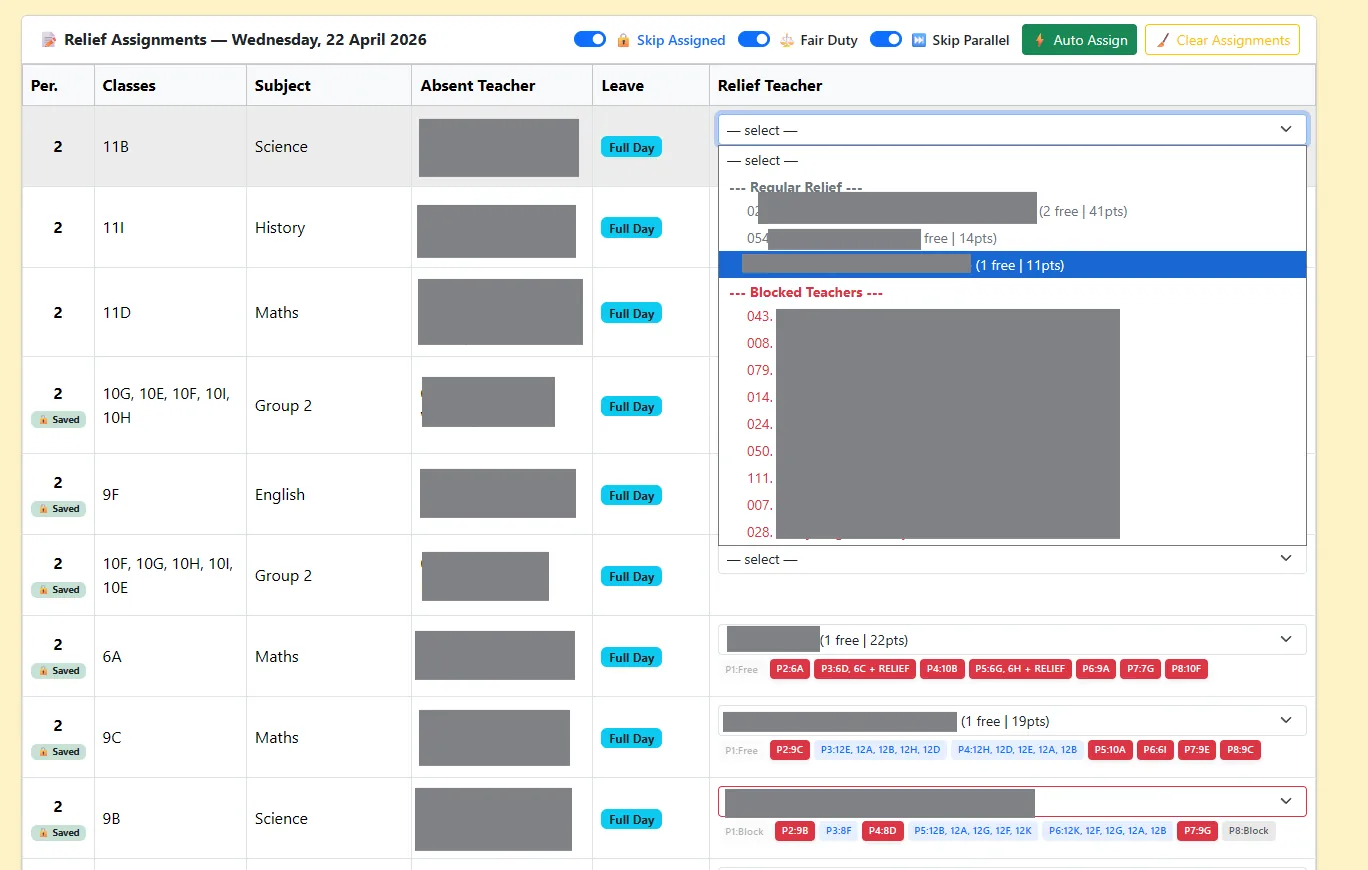
An aSc timetable file holds far more than the printed timetable shows: every teacher, every class, every subject and which period each lesson sits in. The XML export puts all of that into a standard text format other software can read. That is what lets Relief Manager know, period by period, which teachers are free.
Export the XML from aSc Timetables
- Open aSc Timetables and load your final timetable for the term, with all lessons placed.
- Open the File menu and choose Export.
- Pick the aSc XML format. Depending on your version it may be named "aSc Timetables XML" or "aSc Timetables 2012 XML".
- Save the file with a clear name, for example
timetable-2026-term1.xml, somewhere you will find it again.
Before exporting, check that every teacher has their full name filled in, not just a short code. The names in the XML are the names your teachers will see on relief slips and WhatsApp messages.
Import it into Relief Manager
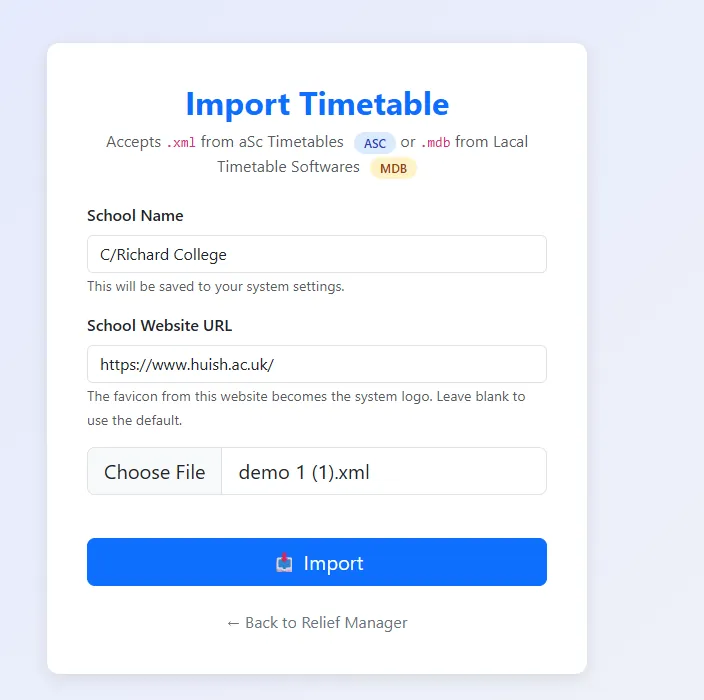
- Sign in to your school's Relief Manager and open Import Timetable.
- Type your school name. It is saved to your settings and printed on reports.
- Optionally type your school website address. Its icon becomes your system logo.
- Choose the XML file and press Import.
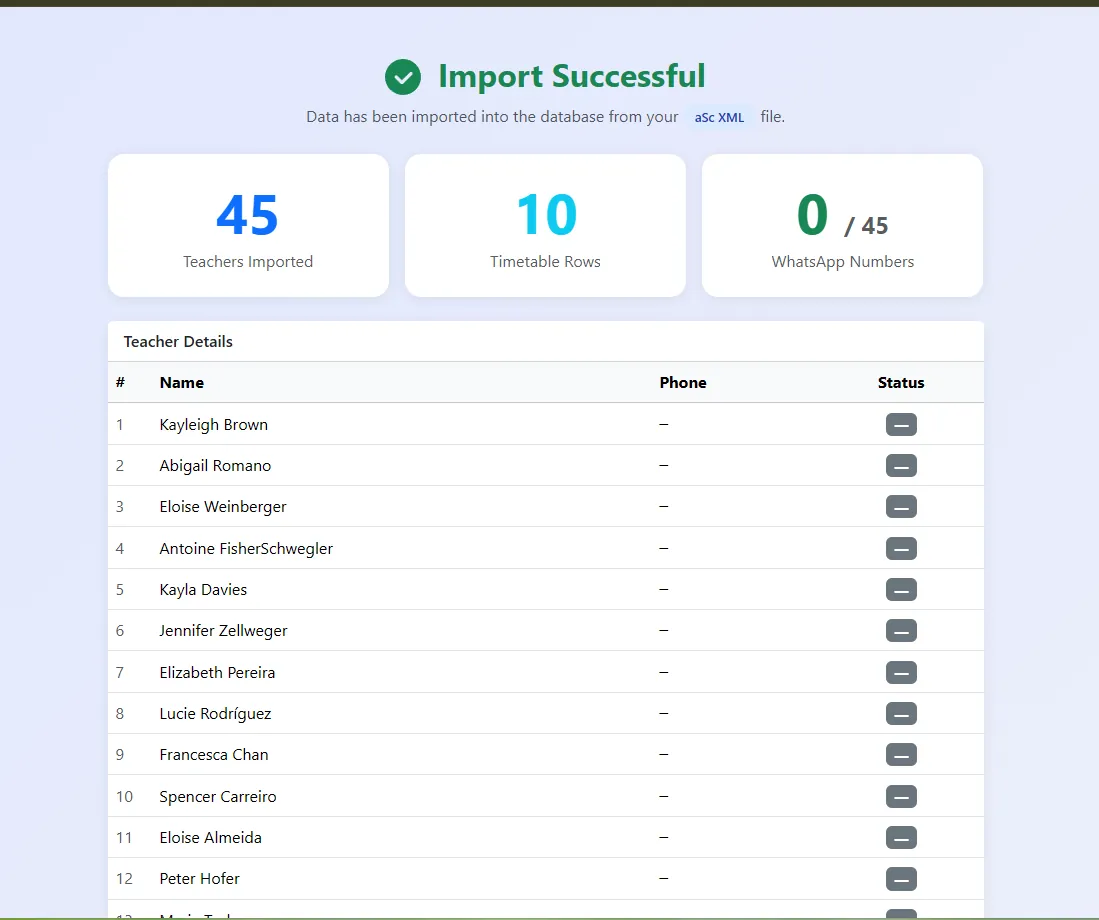
After importing
- Add WhatsApp numbers in Manage Teachers for anyone missing one. The same number is used to sign in to the TeacherSync app.
- Assign classes to sections in Options. The Configuration Verification box lists any class not yet in a section.
- Set subject partners and blocked periods for teachers who need them.
When the timetable changes
Export a fresh XML from aSc and import it again. If you are loading a completely new timetable, for example at the start of a new year, use Reset & Import Database in Manage Teachers, then check partners, blocked periods and WhatsApp numbers again.
Troubleshooting
| Problem | Likely cause | Fix |
|---|---|---|
| Teachers show as codes, not names | Only short names were entered in aSc | Add full names in aSc, export again, re-import |
| A class is missing | The class had no lessons placed | Place its lessons in aSc and export again |
| Duplicated classes warning | The same class appears in two sections | Allowed, but it will print in both section reports. Remove it from one if that is not intended |
| The file is rejected | Wrong export format, or a .roz file instead of .xml | Export again and pick the aSc XML format |
Still stuck? Send us the file on WhatsApp and we will check it.